Aomark Writer · Updated September 28, 2026
Prepare a CSV or XLSX with the required primary_keyword column and optional article settings before importing a batch.
Download the current template
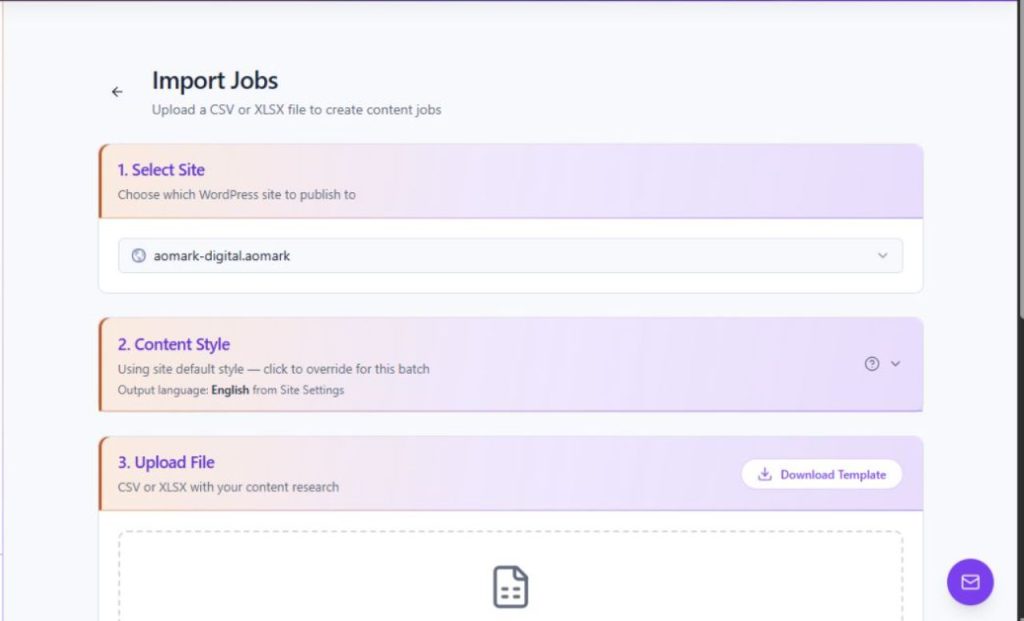
Open Writer → Import, select the destination site, and use Download Template to start from the current column layout. The selected site's content style is the default for the batch and can be overridden on the import page. Output language comes from Site Settings.
- Open Writer → Import and select a site.
- Download the template and fill one article job per row.
- Keep the required primary_keyword column and use the supplied column names for optional fields.
Check columns and upload
The required column is primary_keyword. Optional columns are h1, secondary_keywords, headings, category, tags, slug, scheduled_at, word_count, content_type, tone, audience_level, and writing_rules. After uploading a CSV or XLSX, read the Hub's response and check the resulting jobs before generating or scheduling them.
- Check that every row has a primary_keyword value.
- Review optional values for spelling, date format and relevance to the selected site.
- Upload the file and inspect the Hub's response before starting or scheduling any resulting work.