Aomark Suite 2.0.0 · Updated September 26, 2026
Find the current Suite settings, set site defaults, and understand which preferences affect generated content or SEO output.
Find the settings
Open Aomark Suite → Settings. The settings area is organized into Preferences, Site identity, SEO & sitemaps, Search Console, Export / Import, and Account.
- Open Aomark Suite and choose Settings.
- Use Preferences for generation defaults, Site identity for organization/schema/social details, and SEO & sitemaps for sitemap/technical controls.
- Open Search Console, Export / Import or Account for connection and transfer tasks.
Set preferences before generating
Use Preferences for the site's content language and other generation defaults. Check that the selected language and market match the audience you serve before requesting titles, descriptions, summaries, schema or image descriptions. Generation uses the context and settings shown by the feature.
- Review the configured language and generation defaults.
- Compare them with the intended audience and market.
- Generate one representative item and check its language before using that default broadly.
Keep ownership settings intentional
Use Site identity for organization details and schema-related defaults, and SEO & sitemaps for sitemap and technical SEO controls. Review whether another SEO plugin owns a given output before enabling overlapping output. Suite does not choose indexing policy for you: only change indexing controls when that is an explicit site decision.
- Identify the current owner of titles, social tags, schema and sitemap output.
- Change only the setting that belongs to Suite's agreed output scope.
- Do not alter indexing controls unless the site owner has made that decision.
Connections are separate
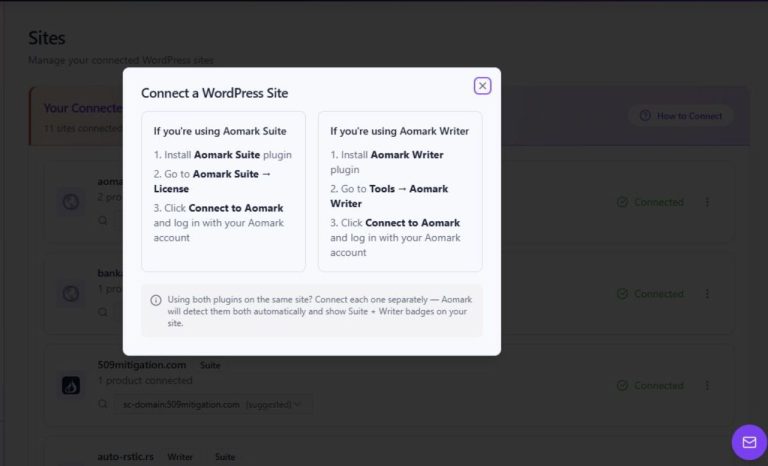
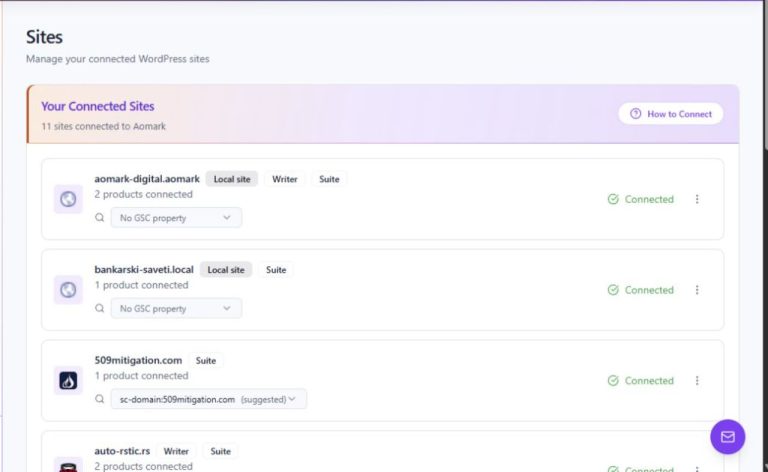
Account handles the Aomark site connection. Search Console's Google authorization and property selection happen separately in Aomark Hub. A connected Aomark account alone does not mean Google data is connected.
- Use Account to check the Aomark site connection.
- Use Search Console to open Hub and check Google authorization and selected property.
- Treat the two connection statuses as separate checks.