Aomark Suite 2.0.0 · Updated September 26, 2026
When WooCommerce is active, use the product editor to research, review and apply a main and short description, or manage eligible products through the background bulk workflow.
What the recording shows
The short recording shows the main-description length controls in a saved WooCommerce product editor. It does not show generated descriptions, review or Apply. Those steps require an Aomark connection registered to the current site's address; a connection copied from another site must be set up separately before generation can work.
Check that the product workflow is available
This feature appears only when WooCommerce is active and only on the WooCommerce product post type. It also requires the WordPress site to be connected to Aomark. The single-product panel is in the product editor; it is not a general page editor feature.
- Confirm WooCommerce is active.
- Open Products and edit a product.
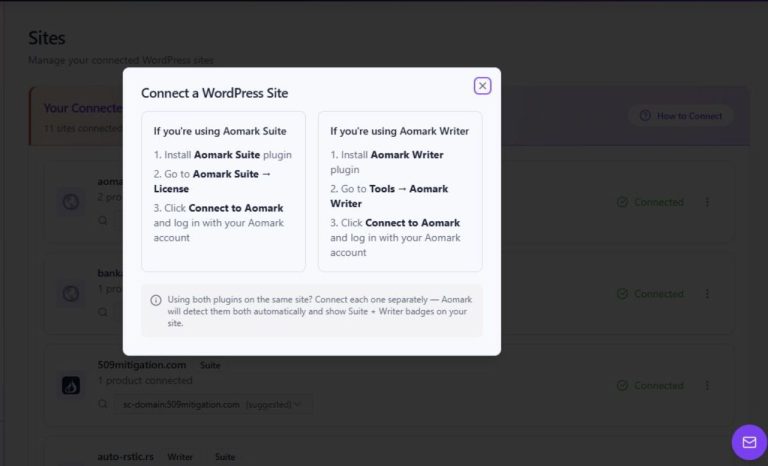
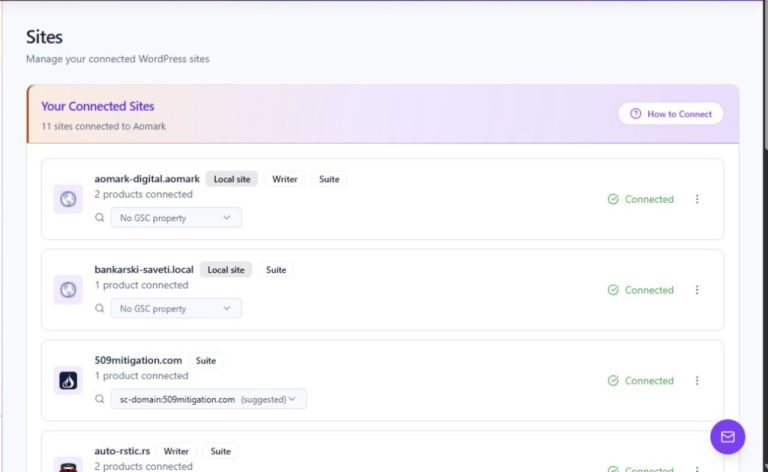
- Connect the site to Aomark if the panel says a connection is required.
Save the product and request research
Save the product first so Suite can research its current, exact product details. In the Aomark Product Description panel, choose a main description length of about 200, 300 or 400 words, then select Research & Generate. The hosted workflow uses product information such as title, URL, SKU/GTIN, brand, categories, tags, attributes, dimensions, weight and existing copy as grounding. It performs sourced web research and charges 5 credits per product.
- Save the product in WordPress before requesting generation.
- Choose the main description target length.
- Select Research & Generate and wait while the job is queued, researched and written.
Review evidence and both drafts
When the result is ready, review the main and short descriptions separately. Check the confidence, warnings and clickable research sources. Confirm specifications, compatibility, materials, dimensions, included items and any safety or warranty statements against reliable product information. A source citation supports review; it does not guarantee that every generated claim is correct. The result panels are previews rather than text editors. Leave an unsuitable field unchecked and write its corrected copy in the normal WooCommerce editor instead.
- Read all warnings before applying either field.
- Open the listed sources and verify important claims.
- Approve only suitable drafts; write corrections manually in the product editor and save them separately.
Apply only the fields you approve
Use the Apply main description and Apply short description checkboxes to choose the fields. Select Apply selected descriptions. If a selected field already contains copy, Suite asks you to confirm replacement and backs up the previous descriptions before applying. Apply saves the selected descriptions directly to the product and refreshes those editor fields. A draft remains unpublished; on a published product the saved copy can affect the storefront immediately. Save or update separately if you make subsequent manual edits. Restore previous descriptions saves the backed-up text directly and refreshes the editor.
- Select the main and/or short description that passed review.
- Confirm replacement only when the existing field should be changed.
- Use Restore previous descriptions if you need the backed-up text; save subsequent manual corrections with the normal product controls.
Use the background bulk workflow when appropriate
The WooCommerce Product Descriptions panel on Aomark Suite → Content has a separate background workflow. Scan products, review missing and thin counts, load a list and select products. Generate missing and Improve thin act on matching products, or only the selected products when a selection is active. Overwrite selected and Overwrite all are explicit replacement actions with confirmation and backups. Bulk jobs apply generated descriptions in the background; they do not stop for review of each generated result. Use the individual product panel when each draft must be checked before applying. Monitor job status, and note that Cancel pending jobs does not undo jobs already underway.
- Open Content and choose Scan products.
- Review missing/thin counts, select a filter, load the list and select only the intended products.
- Choose Generate missing or Improve thin for matching products; use overwrite controls only after reviewing the affected scope and estimated cost.
- Monitor progress and errors, then inspect the product records and correct unsuitable descriptions in their product editors.
If generation is unavailable or fails
If the panel is absent, confirm WooCommerce is active and that you opened a product editor. If generation is disabled, check the Aomark connection and available credits. A failed or blocked job should be inspected before retrying; do not repeatedly start duplicate bulk work. Bulk jobs run through WooCommerce background processing, so check the displayed queue and status if progress pauses.
- Verify product post type, WooCommerce status and Aomark connection.
- Read the displayed job or billing message and check the credit balance.
- Retry only after resolving the reported condition, then verify the resulting product fields.