Aomark Writer · Updated September 28, 2026
Create an optional featured image, review it, and use Sync featured image to attach or refresh its WordPress metadata.
Generate an optional image
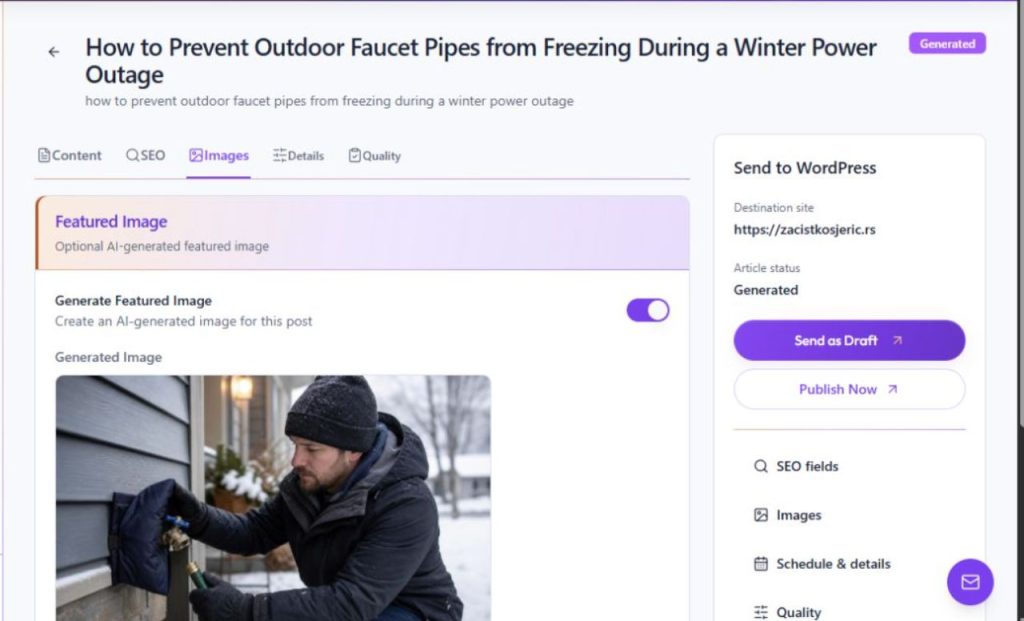
Open Review → Images. Image availability varies by job. Where the control is available, Generate Featured Image requests an AI-generated image for the article. Review the result in the Generated Image area before deciding whether to use it.
- Open the article's Images tab.
- Check whether image generation is available for this job.
- Choose Generate Featured Image only when a generated visual is appropriate for the article.
Review before syncing
Inspect the generated image for relevance and accuracy before syncing it. Sync featured image attaches a missing image or refreshes alt text and title on an existing WordPress post; it does not change the article body or status. After syncing, check the post in WordPress to confirm the expected image and metadata.
- Check that the image depicts a subject supported by the article.
- Review its alt text and title for accuracy and accessibility.
- Use Sync featured image only when you intend to update the WordPress post's featured-image data.