Aomark Writer · Updated September 28, 2026
Prepare topics in a spreadsheet, import the batch, track job states, and review each article before delivery.
Prepare the spreadsheet
Use Writer → Import and Download Template so the batch follows the current column names. Each row needs primary_keyword. Optional fields can define h1, secondary_keywords, headings, category, tags, slug, scheduled_at, word_count, content_type, tone, audience_level, and writing_rules. Choose fields that make the article brief clearer: for instance, a specific h1 and audience level can help distinguish two related topics. These fields guide a job; they do not replace source material or editorial review.
- Choose the destination site and check its default content style.
- Enter one primary_keyword per row and add only fields that apply to the article.
- Review dates, slugs and taxonomy against the destination site's conventions.
Import and inspect the response
Upload the CSV or XLSX on the Import page. Read the Hub's response for the result of the upload, then inspect the jobs that appear in Writer. This catches a wrong site, missing topic or unintended article setting before you move on to generation or scheduling. Content Style defaults to the selected site's style and can be overridden for the batch; output language comes from Site Settings.
- Upload the prepared file to the selected site.
- Read the Hub response and note any rows or fields that need attention.
- Open the resulting jobs and confirm the topic, site, content style and intended settings.
Track work by status
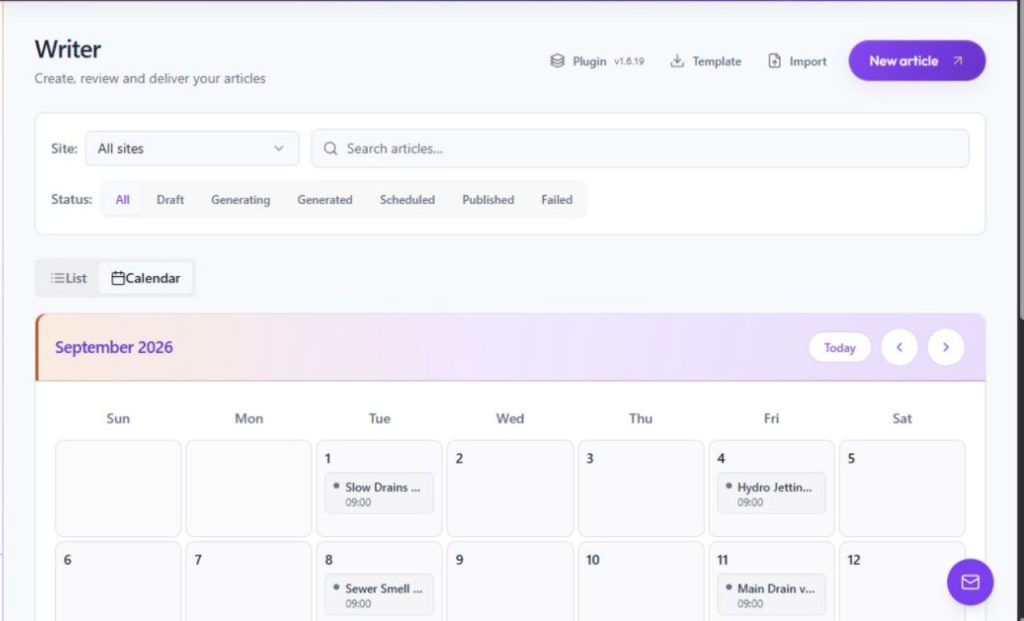
Use the Writer list's site selector, search, status filter and sort controls to monitor Draft, Generating, Generated, Scheduled, Published and Failed jobs. For example, filter to Generated when you are ready to review content, or to Failed when a job needs attention. List supports selecting rows; Calendar displays scheduled jobs by date and opens Review. Use these views to find work, while making article decisions in each job's Review screen.
- Filter to the site and status relevant to the batch.
- Search or sort to locate the intended job.
- Open Review for each article that is ready for editorial work.
Review before delivery
Batch preparation makes jobs easier to organize, but each article still needs an accuracy and quality review before it is sent to WordPress. Check the body, SEO fields, image, taxonomy, slug and schedule against that row's brief. A scheduled job's time uses the selected site's timezone; after choosing a date, use Calendar and the job details to check the displayed time and status.
- Review the body and correct claims or omissions.
- Save SEO fields and confirm Details for the destination.
- Choose draft, schedule or publish only after confirming the intended outcome for that article.
Handle failures deliberately
Use the Failed filter to locate jobs that need attention. Open the job and read its current status and message, then check the part of the workflow named by the message. A problem with an imported field may need a different correction from a problem delivering to WordPress. The delivery panel offers resend actions; confirm the status after retrying the action you intended.
- Open a failed job and read its current status and message.
- Check the destination, article fields and connection status relevant to that message.
- Retry only the affected action after addressing the reported problem, then confirm the updated status.