Aomark Suite 2.0.0 · Updated September 26, 2026
Prepare matching URLs, transfer selected Suite fields, reconnect services separately, and verify the destination after launch.
Map the destination before export
Do URL planning before the cutover. Suite matches pages and existing image attachments by the same URL path, not WordPress IDs, hostnames, titles or similarity. For example, if the source page is `/services/audit/` and the redesign uses `/work/audit/`, the transfer will not infer that those pages correspond. A pretty-permalink destination and existing media files are required; aliases and missing paths are skipped.
- Create the destination pages and upload its image files before importing Suite data.
- Make a source-to-destination URL table and flag every path that changes.
- Where preserving the old path makes sense, align the destination permalink before transfer; separately plan redirects for paths that must change.
Choose what should move
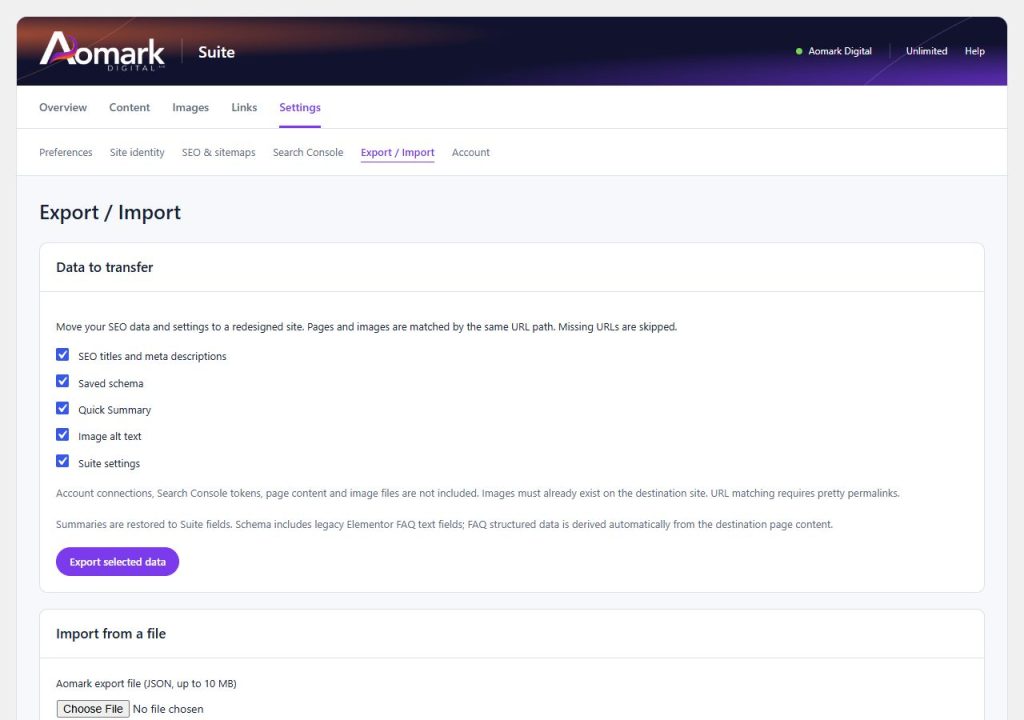
On the source, open Aomark Suite → Settings → Export / Import. Select only the fields useful to the redesign: SEO titles and meta descriptions, saved schema, Quick Summary, image alt text and/or Suite settings. Exported JSON contains values, not a copy of the site. Account connections and Google authorization stay with each installation.
- Select the intended sections and choose Export selected data.
- Store the JSON with the migration materials and confirm its file size stays within the 10 MB upload limit.
- Record which sections were included so the destination review can follow the same scope.
Preview matches before writing
On the destination, open Export / Import, choose the Aomark JSON file and select the sections to import. Choose Preview import before applying. Compare matched, changed, skipped and invalid records with the URL table. If expected pages are missing, check the exact path and pretty-permalink setup; do not assume titles or old numeric IDs will bridge a path change.
- Select the export file and intended data sections.
- Choose Preview import and compare each reported match or skip with the prepared URL map.
- Stop to resolve unexpected path mismatches before importing; the preview is the point to catch them.
Choose the conflict rule deliberately
For Existing values, Fill empty fields preserves values already present on the destination. Overwrite existing values replaces them with the export, including intentionally empty image alt text. Treat these as global rules for the selected transfer sections, not a per-page editorial picker. If you need different decisions for individual URLs, narrow the selected sections where possible and edit the exceptions in the destination editor after import. Be especially careful with Suite settings because they can change the new site's sitemap or output behavior.
- Use Fill empty fields when destination content has already been reviewed and should stay in place.
- Use Overwrite only after deciding the exported values should replace destination values for the selected sections.
- Select Import selected data and wait for the reported result before leaving the page.
Know what the transfer leaves behind
The import does not move page bodies, image files, account connections, Search Console tokens, interlink indexes, cluster assignments or queued jobs. Quick Summary is restored to Suite fields; it is not inserted into the redesigned post body. Saved schema is carried as structured data and internal URL values are rebased, while automatic FAQ schema is rebuilt from the destination's visible content. Recheck these behaviors before expecting the redesigned page to look like the source.
- Copy page content and media through the site's separate migration process.
- Plan to reconnect each account and rebuild local Links indexes and clusters.
- Review summaries and schema in their Suite fields and page output after import.
Reconnect services and rebuild local tools
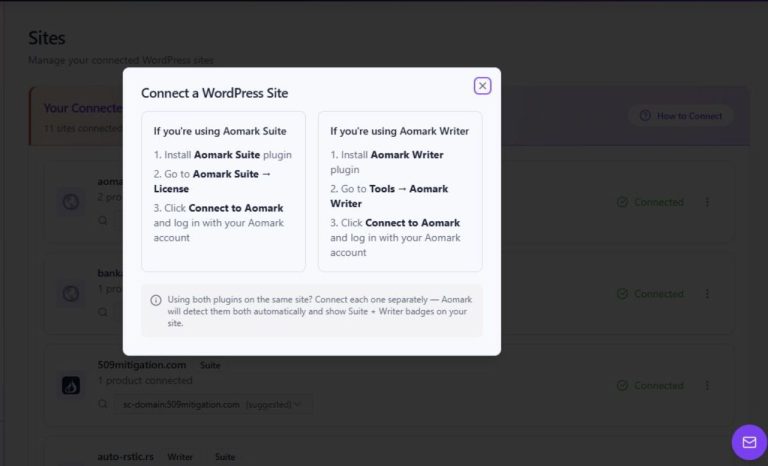
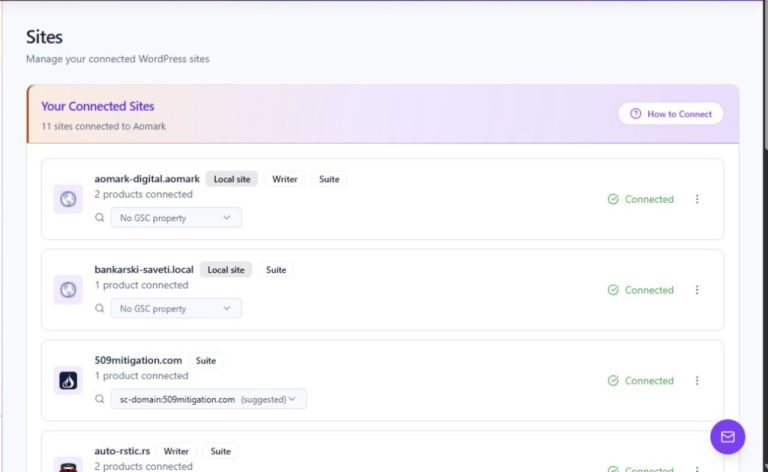
After data transfer, connect the destination installation under Settings → Account. This is a new site connection. Then use Aomark Hub to authorize Google Search Console and select the destination property; the source token is not transferred. Rebuild or sync the internal-link index and recreate useful topic clusters, because the transfer does not include either structure.
- Connect the destination site's Aomark account.
- Connect Google Search Console separately in Hub and confirm the selected property belongs to the destination.
- Run the available local Links indexing/sync workflow and restore clusters from your migration plan.
Verify the destination and troubleshoot misses
Check records from each selected section, including an unchanged path, a changed path and an existing destination value. Verify that the new host appears in schema URLs, Quick Summary remains in Suite fields, media alt text is attached to the expected image, and the new public page emits only its intended SEO output. If a row was skipped, compare its exact path and confirm the destination page or attachment exists; correct the destination structure before generating a new export/import. Check sitemaps separately because they describe URL discovery and do not decide indexing.
- Open representative destination pages and images and inspect their saved fields.
- Check the rendered title, description, schema and canonical URL with the site's chosen SEO owner.
- Open the destination sitemap and Search Console property separately; record unresolved URL exceptions for the migration owner.
Continue with Suite
Browse Suite tutorials and guides in Resources
Keep SEO data transfer and URL mapping in the same migration review. Check your redirect CSV before implementation. Open the free tool.