Aomark Suite 2.0.0 · Updated September 26, 2026
Decide whether a sitewide missing-field job is appropriate, use per-record editors for narrow work, and review direct bulk writes as they finish.
Set the scope before you open Content
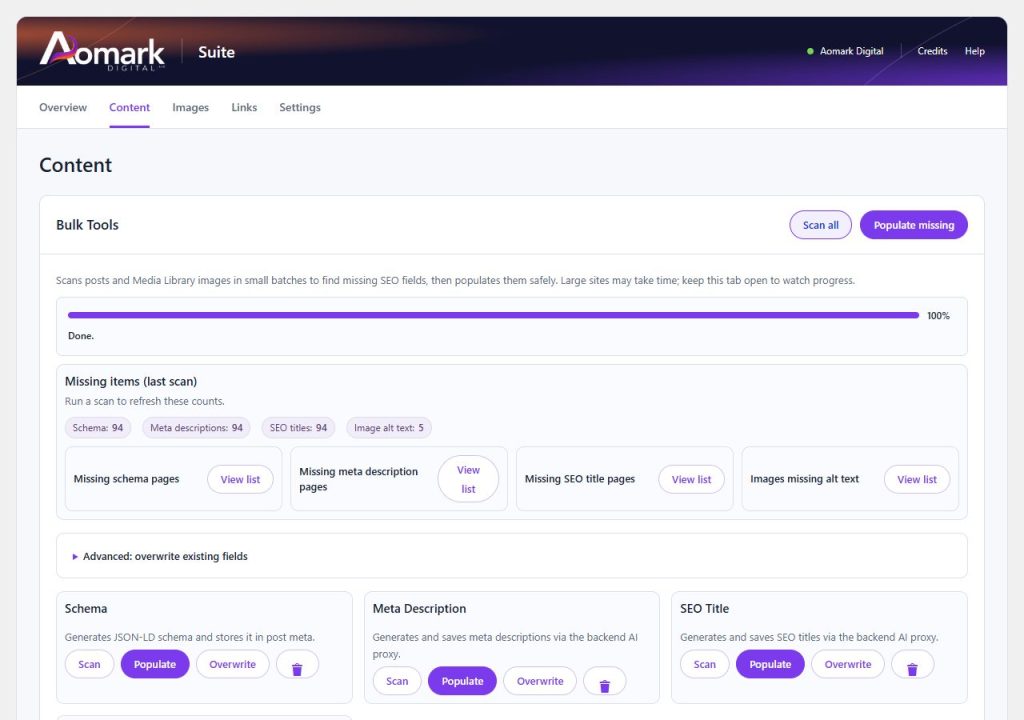
Begin with a real editorial question: which field is missing, which published pages matter, and who owns the live output? Make a short list of pages that need careful, page-specific work. Suite's Content screen scans sitewide and Populate missing acts on eligible missing values; it does not let you select a page subset. If only a few records should change, edit those records one at a time in their post or media editor. Use the sitewide action only when filling that field across all eligible records is acceptable.
- Record the affected content types and URLs from your editorial inventory.
- Check whether another SEO plugin supplies the visible value before treating a blank Suite field as a public-page defect.
- Choose per-record editing for a limited page list; reserve bulk generation for field-wide missing-value coverage.
Inspect the current state
Open Aomark Suite → Content and choose Scan all. Suite checks posts and Media Library images in small automatic batches; large sites may take time, so keep the tab open to watch progress. Review the counts for Schema, Meta descriptions, SEO titles and Image alt text. Use each View list to understand the affected records. These counts show whether Suite fields are empty, not whether an existing title is good or another plugin provides the live value.
- Run Scan all and wait for completion.
- Open the relevant View list and note the records in scope.
- Check representative URLs in WordPress and identify duplicate SEO ownership before generating.
Generate missing fields with eyes open
Populate missing is a direct write. It does not create a review queue or pause each result for approval. Use it when filling all eligible missing fields of that type is intended, then watch the progress and completion status. AI generation needs a connected Aomark account and may consume credits. Because the action can write many records, the review happens after generation; narrow work belongs in individual editors.
- Select the intended field's Populate action only after confirming its sitewide scope.
- Keep the Content screen open until the action completes and note any errors.
- Open processed pages and media records to review the saved value.
Use overwrite for an intentional replacement
Advanced: overwrite existing fields contains separate actions for Schema, Meta Description, SEO Title and Image Alt Text. Overwrite replaces existing values for the chosen field across its eligible records; there is no per-page selection. It can replace carefully edited copy or values managed elsewhere, so do not use it as a general refresh button. If replacement is needed only on selected records, use the individual editor. The Clear action removes values and is not a substitute for improving them.
- Confirm which field the Advanced action affects.
- Confirm that replacing existing values across the eligible set is intended and that another plugin will not conflict.
- Run Overwrite only after preserving any values that must be retained.
Review direct writes and public effect
Bulk Tools saves the generated metadata directly. It does not publish draft posts, but on already published pages a saved title, description, schema or image alt value may affect front-end output immediately, depending on the site's active SEO owner. Inspect several changed records and the rendered public output. Verify names, dates, claims, schema facts, alt descriptions and duplicate output. Correct errors in the relevant editor before treating the operation as complete.
- Review processed records and errors in the relevant View list.
- Check a representative public page or image attachment in a private browser window.
- Fix inaccurate or conflicting output in its owning editor and document the URLs changed.
When results look wrong
If a value appears absent publicly but exists in Suite, check which plugin emits the page's metadata and whether its cache needs a normal site purge. If a bulk result is unsuitable, edit the affected record and correct the saved value; do not rerun overwrite to compensate. Bulk Tools does not rename files. Use Images → Bulk Image Renamer for filenames, then verify changed media URLs separately.