Aomark Suite 2.0.0 · Updated September 26, 2026
A practical sequence for improving a WordPress page: establish context, fix metadata and images, strengthen links, then verify what is saved and published.
Start with a page and a baseline
Work on one URL first. For example, if you are refreshing a service page, the reader may want to know what the service includes, who it is for and how to take the next step. Make those answers clear in the page before tuning its search presentation. In Suite Overview, local field coverage, Search Console measurements and DataForSEO Labs estimates appear as different kinds of information; do not treat a modeled estimate as observed traffic.
- Write down the page URL, its purpose, the intended reader and one primary query or question.
- Record its current SEO title, description, images, internal links and schema owner.
- Check whether another SEO plugin supplies the live metadata or schema so Suite does not create duplicate output.
Improve the page itself
Use the page's current content as the source for every generated field. If a service page does not explain eligibility, location or limitations, add those facts to the page first rather than asking a generated description to invent them. Keep headings in a useful reading order, remove stale claims and link to the action the reader actually needs.
- Edit the WordPress page and save the factual or structural improvements.
- Check that the title and main headings describe the same offer, and that key qualifications are visible.
- Only then generate summaries, metadata or schema from the revised page.
Draft and save metadata
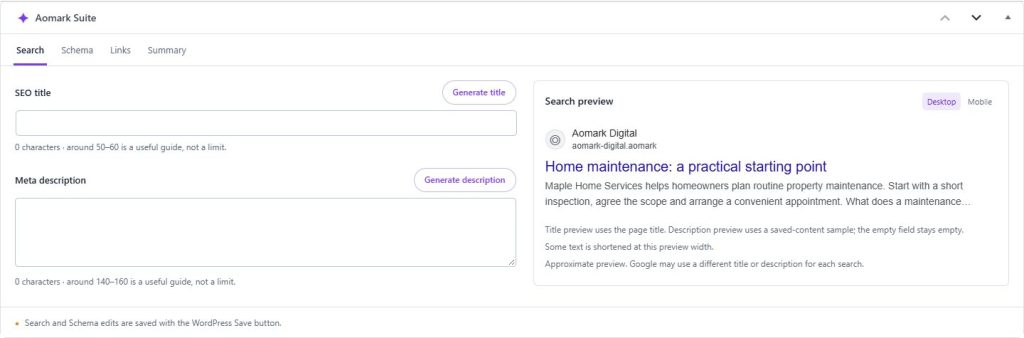
Open the Aomark Suite SEO metadata panel in the editor and generate the SEO title and meta description. Treat each as a draft. A useful service-page title names the service and a meaningful differentiator; the description explains what the page helps the reader do. Avoid adding a city, price or guarantee unless it is true on the page. The search preview is approximate, and a search engine may display different text.
- Generate the title and description from the updated page.
- Edit them for accuracy, page uniqueness and clarity; remove claims that are not supported by the visible content.
- Save or update the WordPress page, then check that the intended SEO owner emits the saved values.
Review images
Inspect each image that conveys information. Write alt text for the image's role in this page: for example, a diagram's alt text should convey its key relationship, while a decorative flourish may need empty alt text. A filename is separate from alt text. Renaming a file changes its URL, so do it only when the new name is worth checking affected references and redirects.
- Open the relevant attachment in Media Library and inspect the actual image.
- Edit or generate alt text, then correct details that are not visually supported.
- If you rename the file, open the new attachment URL and inspect the page that embeds it.
Add useful internal paths
Use Aomark Suite → Links for the content link audit and topic clusters, and use the editor's link analysis for page-specific suggestions. A service page might link to a relevant case study or an explanatory guide where that helps answer the reader's next question. Do not apply every suggestion simply because it exists.
- Analyze the page's link opportunities in the editor.
- Choose Review when the anchor wording or sentence needs adjustment; confirm the target is the correct published page.
- Apply an individual suggestion, inspect the changed paragraph, and use Undo if it is wrong. Save the WordPress page only after checking the full passage.
Add structured data carefully
Generate schema only when Suite is the intended owner and the page supports the represented type. Check names, URLs and claims against what a visitor can see. FAQPage output is derived from recognizable visible questions and answers in the rendered page; maintain those answers in the page itself. If the page has no visible FAQ, do not add one just to create a schema node.
- Generate or review the page's JSON-LD in the Suite Schema panel.
- Confirm the relevant automatic schema setting is enabled only if Suite owns this output.
- Inspect the public rendered JSON-LD and resolve duplicate schema from other tools.
Verify and learn from the right evidence
Open the public URL in a private browser window and check its visible title, description behavior, image, links and structured data. A page-level validator can flag malformed JSON-LD, but valid markup does not promise a rich result. To assess search outcomes, connect the Google property separately in Aomark Hub and review Search Console after its reporting delay. Compare equivalent date ranges and use measured clicks and impressions as performance evidence; keep Labs estimates in their separate market-research context.
- Check the rendered page and source for the intended fields and one schema owner.
- Check links and image requests resolve after saving or renaming.
- Record the change date and revisit comparable Search Console periods later; do not expect historical data to update instantly.