Aomark Writer · Updated September 28, 2026
Use Writer's review tabs to check the article, search metadata, image and destination before choosing how it reaches WordPress.
Set editorial acceptance criteria
Before reviewing, decide what the article needs to accomplish and which facts must remain precise. A practical check for a service explainer might include eligibility, process, realistic timing, limitations and the next step. This gives the review a clear standard beyond word count or keyword presence. For instance, if the article explains a repair service, the reader should be able to tell what the service covers and what situation needs a separate assessment.
- Write down the reader's main question and the answer the article must provide.
- List claims that need source confirmation or legal/operational review.
- Identify required links, calls to action and qualifications.
Review content and audit suggestions
Read the complete article in Content and inspect its structure in Preview or Code. Check whether the title, opening, headings and conclusion all support the same purpose. Correct factual errors, unclear definitions, repetition and missing caveats. Quality includes Run Audit, an editorial SEO check for the generated job. Treat any findings as prompts to inspect the relevant passage: the article and its source material determine whether a change is appropriate. Use the formatting toolbar to revise headings, lists, links or quotations, then save changes in Content.
- Check the article from its opening through its conclusion.
- Compare each important claim with reliable source material.
- If you run the audit, verify every finding before making an editorial change.
Check search and image fields
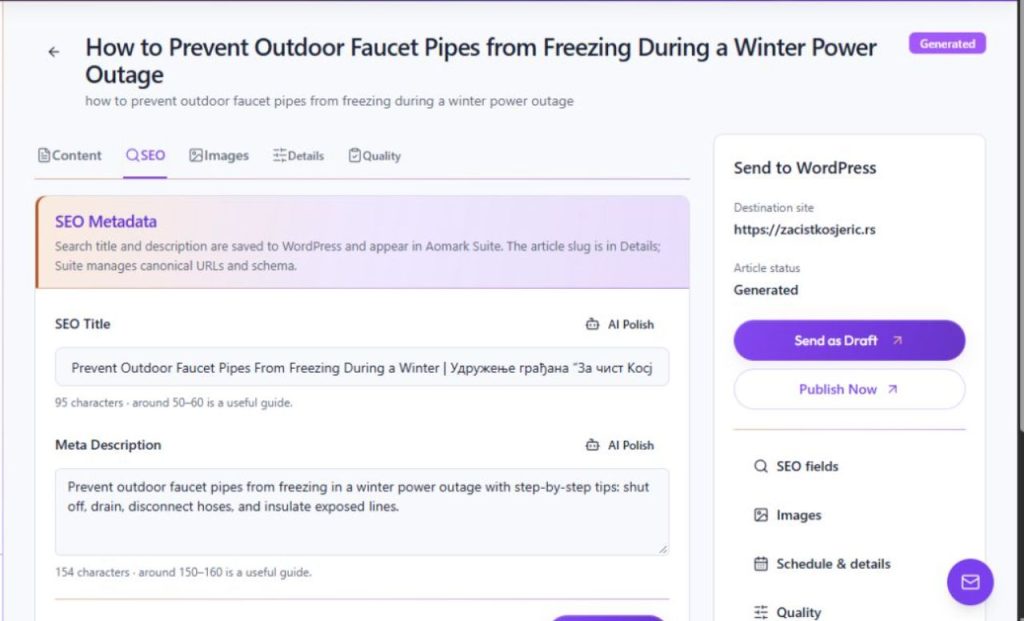
SEO contains the title and meta description, along with AI Polish and length guides. Keep the title distinct from the article headline when that improves the search result, while preserving the same subject and truthful promise. Details displays the slug and other job metadata. Images may offer an AI-generated featured image and a sync action. Review all generated suggestions against visible article content; an image should not depict events or details the text does not support.
- Save accurate SEO values with Save SEO.
- Review the displayed slug, category and tags in Details.
- Review image relevance and alt text before choosing Sync featured image.
Select the right WordPress outcome
The delivery panel shows the destination, status, Resend as Draft, Resend & Publish, and View in WordPress. A draft is useful when a WordPress editor must approve the post there. Publishing from Writer should be reserved for an article whose content and timing are approved. Before sending, recheck the selected site and the job status so the action applies to the intended post. After either action, check the status and open the WordPress post to see what reached the destination.
- Confirm the destination site and current status.
- Choose Resend as Draft for a post that needs WordPress-side review.
- Choose Resend & Publish only when publishing now is intended.
Verify what WordPress received
After delivery, check the WordPress status, post ID and permalink displayed in Writer, then open View in WordPress. Review the delivered body, categories and metadata against the version you approved. If the public search title differs, another SEO tool may own the live output or a search engine may select alternate text; investigate ownership before rewriting an accurate Writer field. If a visible field is missing, compare the Writer review values with the WordPress post before retrying delivery.
- Confirm the resulting status, post ID and permalink when available.
- Open the post and compare its content with the reviewed Writer version.
- Check the site's SEO ownership if rendered search metadata differs.
Continue with a focused tutorial
Run a quality check on a Writer article
Generate and sync an article's featured image